Multicast
Multicast Overview
This chapter shows you how to configure various multicast features.
Traditionally, IP packets are transmitted in one of either two ways – Unicast (one sender to one recipient) or Broadcast (one sender to everybody on the network). Multicast delivers IP packets to just a group of hosts on the network.
IGMP (Internet Group Management Protocol) is a network-layer protocol used to establish membership in a multicast group – it is not used to carry user data. Refer to RFC 1112, RFC 2236 and RFC 3376 for information on IGMP versions 1, 2 and 3 respectively.
• Use the IGMP Filtering Profile (IGMP Filtering Profile) to specify a range of multicast groups that clients connected to the Switch are able to join.
What You Need to Know
Read on for concepts on Multicasting that can help you configure the screens in this chapter.
IP Multicast Addresses
In IPv4, a multicast address allows a device to send packets to a specific group of hosts (multicast group) in a different subnetwork. A multicast IP address represents a traffic receiving group, not individual receiving devices. IP addresses in the Class D range (224.0.0.0 to 239.255.255.255) are used for IP multicasting. Certain IP multicast numbers are reserved by IANA for special purposes (see the IANA website for more information).
IGMP Snooping
A Switch can passively snoop on IGMP packets transferred between IP multicast routers or switches and IP multicast hosts to learn the IP multicast group membership. It checks IGMP packets passing through it, picks out the group registration information, and configures multicasting accordingly. IGMP snooping allows the Switch to learn multicast groups without you having to manually configure them.
The Switch forwards multicast traffic destined for multicast groups (that it has learned from IGMP snooping or that you have manually configured) to ports that are members of that group. IGMP snooping generates no additional network traffic, allowing you to significantly reduce multicast traffic passing through your Switch.
IGMP Snooping and VLANs
The Switch can perform IGMP snooping on up to 16 VLANs. You can configure the Switch to automatically learn multicast group membership of any VLANs. The Switch then performs IGMP snooping on the first 16 VLANs that send IGMP packets. This is referred to as auto mode. Alternatively, you can specify the VLANs that IGMP snooping should be performed on. This is referred to as fixed mode. In fixed mode the Switch does not learn multicast group membership of any VLANs other than those explicitly added as an IGMP snooping VLAN.
IPv4 Multicast Status
Click SWITCHING > Multicast > IPv4 Multicast > IPv4 Multicast Status to display the screen as shown. This screen shows the IPv4 multicast group information. See Multicast Overview for more information on multicasting.
SWITCHING > Multicast > IPv4 Multicast > IPv4 Multicast Status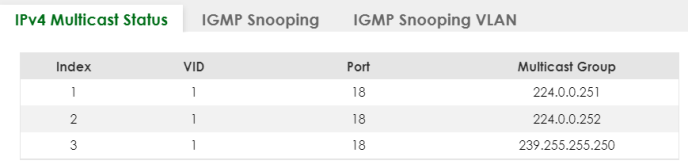
The following table describes the labels in this screen.
label | description |
|---|---|
Index | This is the index number of the entry. |
VID | This field displays the multicast VLAN ID. |
Port | This field displays the port number that belongs to the multicast group. |
Multicast Group | This field displays IP multicast group addresses. |
IGMP Snooping
Click SWITCHING > Multicast > IPv4 Multicast > IGMP Snooping to display the screen as shown. See Multicast Overview for more information on multicasting.
SWITCHING > Multicast > IPv4 Multicast > IGMP Snooping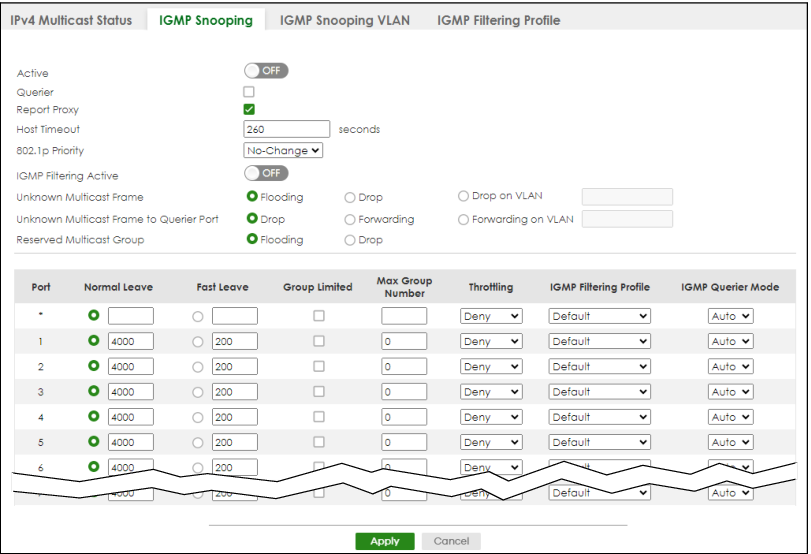
SWITCHING > Multicast > IPv4 Multicast > IGMP Snooping (Cloud Mode)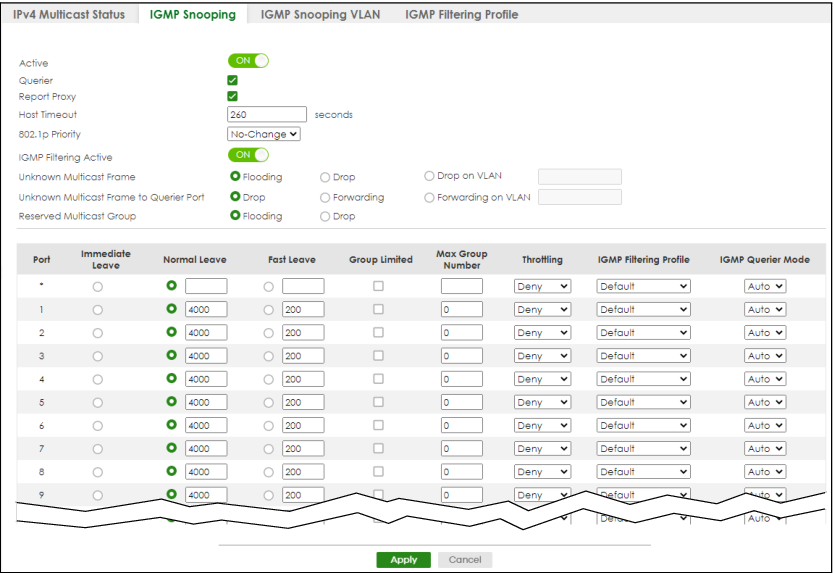
The following table describes the labels in this screen.
label | description |
|---|---|
Active | Enable the switch button to enable IGMP Snooping to forward group multicast traffic only to ports that are members of that group. |
Querier | Select this to allow the Switch to send IGMP General Query messages to the VLANs with the multicast hosts attached. |
Report Proxy | Select this to allow the Switch to act as the IGMP report proxy and leave proxy. It will report group changes to a connected multicast router. The Switch not only checks IGMP packets between multicast routers or switches and multicast hosts to learn the multicast group membership, but also replaces the source MAC address in an IGMP v1/v2 report with its own MAC address before forwarding to the multicast router or switch. When the Switch receives more than one IGMP v1/v2 join report that requests to join the same multicast group, it only sends a new join report with its MAC address. This helps reduce the number of multicast join reports passed to the multicast router or switch. The Switch sends a leave message with its MAC address to the multicast router or switch only when it receives the leave message from the last host in a multicast group. |
Host Timeout | Specify the time (from 1 to 16711450) in seconds that elapses before the Switch removes an IGMP group membership entry if it does not receive report messages from the port. |
802.1p Priority | Select a priority level (0 – 7) to which the Switch changes the priority in outgoing IGMP control packets. Otherwise, select No-Change to not replace the priority. |
IGMP Filtering Active | Enable the switch button to enable IGMP filtering to control which IGMP groups a subscriber on a port can join. If you enable IGMP filtering, you must create and assign IGMP filtering profiles for the ports that you want to allow to join multicast groups. |
Unknown Multicast Frame | Specify the action to perform when the Switch receives an unknown multicast frame. • Select Flooding to send the frames to all ports. • Select Drop to discard the frames. • Select Drop on VLAN and enter the VLAN ID numbers to discard the frames on the specified VLANs. Use a dash to specify consecutive VLANs and a comma (no spaces) to specify non-consecutive VLANs. For example, 51–53 includes 51, 52 and 53, but 51,53 does not include 52. |
Unknown Multicast Frame to Querier Port | Specify the action to perform when Unknown Multicast Frame is set to Drop. • Select Drop to discard the frames. • Select Forwarding to send the frames to all querier ports. • Select Forwarding on VLAN and enter the VLAN ID numbers to send the frames to the ports which are used as an IGMP query port on the specified VLANs. Use a dash to specify consecutive VLANs and a comma (no spaces) to specify non-consecutive VLANs. For example, 51–53 includes 51, 52 and 53, but 51,53 does not include 52. |
Reserved Multicast Group | The IP address range of 224.0.0.0 to 224.0.0.255 are reserved for multicasting on the local network only. For example, 224.0.0.1 is for all hosts on a local network segment and 224.0.0.9 is used to send RIP routing information to all RIP v2 routers on the same network segment. A multicast router will not forward a packet with the destination IP address within this range to other networks. See the IANA web site for more information. The layer-2 multicast MAC addresses used by Cisco layer-2 protocols, 01:00:0C:CC:CC:CC and 01:00:0C:CC:CC:CD, are also included in this group. Specify the action to perform when the Switch receives a frame with a reserved multicast address. • Select Flooding to send the frames to all ports. • Select Drop to discard the frames. |
Use this section to configure IGMP Snooping on each port. | |
Port | This field displays the port number. |
* | Settings in this row apply to all ports. Use this row only if you want to make some settings the same for all ports. Use this row first to set the common settings and then make adjustments on a port-by-port basis. Changes in this row are copied to all the ports as soon as you make them. |
Immediate Leave | Select this to set the Switch to remove this port from the multicast tree when an IGMP version 2 leave message is received on this port. Select this option if there is only one host connected to this port. |
Normal Leave | Enter an IGMP normal leave timeout value (from 200 to 6348800) in miliseconds. Select this option to have the Switch use this timeout to update the forwarding table for the port. In normal leave mode, when the Switch receives an IGMP leave message from a host on a port, it forwards the message to the multicast router. The multicast router then sends out an IGMP Group-Specific Query (GSQ) message to determine whether other hosts connected to the port should remain in the specific multicast group. The Switch forwards the query message to all hosts connected to the port and waits for IGMP reports from hosts to update the forwarding table. This defines how many seconds the Switch waits for an IGMP report before removing an IGMP snooping membership entry when an IGMP leave message is received on this port from a host. |
Fast Leave | Enter an IGMP fast leave timeout value (from 200 to 6348800) in miliseconds. Select this option to have the Switch use this timeout to update the forwarding table for the port. In fast leave mode, right after receiving an IGMP leave message from a host on a port, the Switch itself sends out an IGMP Group-Specific Query (GSQ) message to determine whether other hosts connected to the port should remain in the specific multicast group. This helps speed up the leave process. This defines how many seconds the Switch waits for an IGMP report before removing an IGMP snooping membership entry when an IGMP leave message is received on this port from a host. |
Group Limited | Select this option to limit the number of multicast groups this port is allowed to join. |
Max Group Number | Enter the number of multicast groups this port is allowed to join. Once a port is registered in the specified number of multicast groups, any new IGMP join report frames is dropped on this port. |
Throttling | IGMP throttling controls how the Switch deals with the IGMP reports when the maximum number of the IGMP groups a port can join is reached. Select Deny to drop any new IGMP join report received on this port until an existing multicast forwarding table entry is aged out. Select Replace to replace an existing entry in the multicast forwarding table with the new IGMP reports received on this port. |
IGMP Filtering Profile | Select the name of the IGMP filtering profile to use for this port. Otherwise, select Default to prohibit the port from joining any multicast group. You can create IGMP filtering profiles in the SWITCHING > Multicast > IPv4 Multicast > IGMP Filtering Profile screen. |
IGMP Querier Mode | The Switch treats an IGMP query port as being connected to an IGMP multicast router (or server). The Switch forwards IGMP join or leave packets to an IGMP query port. Select Auto to have the Switch use the port as an IGMP query port if the port receives IGMP query packets. Select Fixed to have the Switch always use the port as an IGMP query port. Select this when you connect an IGMP multicast server to the port. Select Edge to stop the Switch from using the port as an IGMP query port. The Switch will not keep any record of an IGMP router being connected to this port. The Switch does not forward IGMP join or leave packets to this port. |
Apply | Click Apply to save your changes to the Switch’s run-time memory. The Switch loses these changes if it is turned off or loses power, so use the Save link on the top navigation panel to save your changes to the non-volatile memory when you are done configuring. |
Cancel | Click Cancel to begin configuring this screen afresh. |
IGMP Snooping VLAN
Click SWITCHING > Multicast > IPv4 Multicast > IGMP Snooping VLAN to display the screen as shown. See IGMP Snooping and VLANs for more information on IGMP Snooping VLAN.
 You can perform IGMP snooping on up to 16 VLANs.
SWITCHING > Multicast > IPv4 Multicast > IGMP Snooping VLAN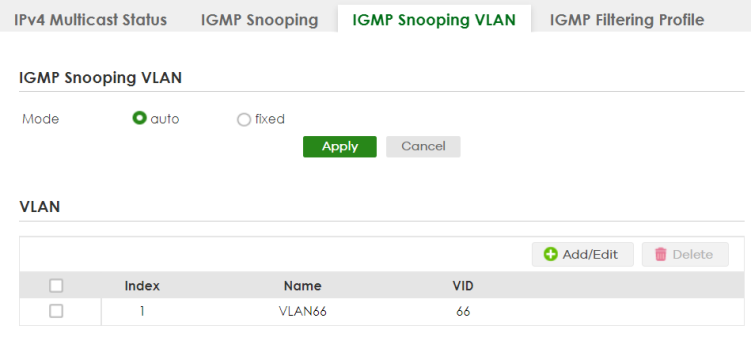
The following table describes the labels in this screen.
label | description |
|---|---|
IGMP Snooping VLAN | |
Mode | Select auto to have the Switch learn multicast group membership information of any VLANs automatically. Select fixed to have the Switch only learn multicast group membership information of the VLANs that you specify below. In either auto or fixed mode, the Switch can learn up to 16 VLANs. The Switch drops any IGMP control messages which do not belong to these 16 VLANs. You must also enable IGMP snooping in the SWITCHING > Multicast > IPv4 Multicast > IGMP Snooping screen first. |
Apply | Click Apply to save your changes to the Switch’s run-time memory. The Switch loses these changes if it is turned off or loses power, so use the Save link on the top navigation panel to save your changes to the non-volatile memory when you are done configuring. |
Cancel | Click Cancel to begin configuring this screen afresh. |
VLAN Use this section of the screen to add VLANs on which the Switch is to perform IGMP snooping. | |
Index | This is the index number of the IGMP snooping VLAN entry in the table. |
Name | This field displays the descriptive name for this VLAN group. |
VID | This field displays the ID number of the VLAN group. |
Select an entry’s checkbox to select a specific entry. Otherwise, select the checkbox in the table heading row to select all entries. | |
Add/Edit | Click Add/Edit to create a new entry or edit a selected one. |
Delete | Click Delete to remove the selected entries. |
Add/Edit IGMP Snooping VLANs
This screen allows you to add an IGMP snooping VLAN or edit an existing one.
To access this screen, click the Add/Edit button or select an entry from the list and click the Add/Edit button.
SWITCHING > Multicast > IPv4 Multicast > IGMP Snooping VLAN > Add/Edit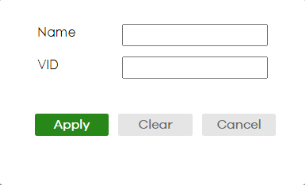
The following table describes the labels in this screen.
label | description |
|---|---|
Name | Enter the descriptive name of the VLAN for identification purposes. You can enter up to 32 printable ASCII characters except [ ? ], [ | ], [ ' ], [ " ] or [ , ]. |
VID | Enter the ID of a static VLAN; the valid range is between 1 and 4094. |
Apply | Click Apply to save your changes to the Switch’s run-time memory. The Switch loses these changes if it is turned off or loses power, so use the Save link on the top navigation panel to save your changes to the non-volatile memory when you are done configuring. |
Clear | Click Clear to clear the fields to the factory defaults. |
Cancel | Click Cancel to not save the configuration you make and return to the last screen. |
IGMP Filtering Profile
An IGMP filtering profile specifies a range of multicast groups that clients connected to the Switch are able to join. A profile contains a range of multicast IP addresses which you want clients to be able to join. Profiles are assigned to ports (in the SWITCHING > Multicast > IPv4 Multicast > IGMP Snooping screen). Clients connected to those ports are then able to join the multicast groups specified in the profile. Each port can be assigned a single profile. A profile can be assigned to multiple ports.
Click SWITCHING > Multicast > IPv4 Multicast > IGMP Filtering Profile link to display the screen as shown.
SWITCHING > Multicast > IPv4 Multicast > IGMP Filtering Profile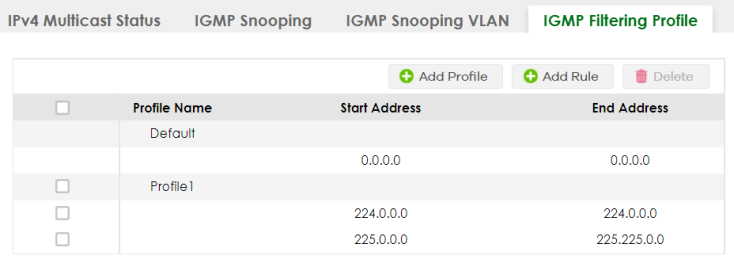
The following table describes the labels in this screen.
label | description |
|---|---|
Profile Name | This field displays the descriptive name of the profile. |
Start Address | This field displays the start of the multicast address range. |
End Address | This field displays the end of the multicast address range. |
Select an entry’s checkbox to select a specific entry. Otherwise, select the checkbox in the table heading row to select all entries. | |
Add Profile | Click this to add a new IGMP filtering profile. |
Add Rule | Click Add Rule to add a new rule and specify the profile it belongs to in the Add Rule screen. You can also select a profile entry and click Add Rule to add an additional rule for the selected profile. |
Delete | Select a profile and click Delete to remove the selected profile and the accompanying rules. Select a rule from a profile and click Delete to remove the selected rule. |
Add IGMP Filtering Profile
To access this screen, click the Add Profile button in the SWITCHING > Multicast > IPv4 Multicast > IGMP Filtering Profile screen.
SWITCHING > Multicast > IPv4 Multicast > IGMP Filtering Profile > Add Profile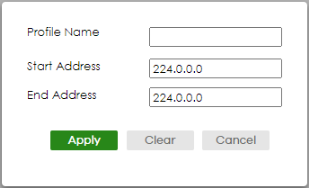
The following table describes the labels in this screen.
label | description |
|---|---|
Profile Name | Enter a descriptive name for the profile for identification purposes. You can enter up to 32 printable ASCII characters except [ ? ], [ | ], [ ' ], [ " ] or [ , ]. |
Start Address | Enter the starting multicast IP address for a range of multicast IP addresses that you want to belong to the IGMP filter profile. |
End Address | Enter the ending multicast IP address for a range of IP addresses that you want to belong to the IGMP filter profile. If you want to add a single multicast IP address, enter it in both the Start Address and End Address fields. |
Apply | Click Apply to save your changes to the Switch’s run-time memory. The Switch loses these changes if it is turned off or loses power, so use the Save link on the top navigation panel to save your changes to the non-volatile memory when you are done configuring. |
Clear | Click Clear to clear the fields to the factory defaults. |
Cancel | Click Cancel to not save the configuration you make and return to the last screen. |
Add IGMP Filtering Rule
Click Add Rule in the SWITCHING > Multicast > IPv4 Multicast > IGMP Filtering Profile screen to access this screen.
SWITCHING > Multicast > IPv4 Multicast > IGMP Filtering Profile > Add Rule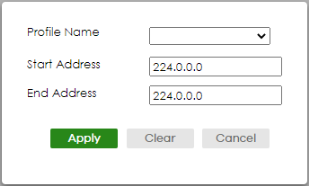
The following table describes the labels in this screen.
label | description |
|---|---|
Profile Name | Select a profile from the drop-down list to add a additional rule for the existing profile. |
Start Address | Enter the starting multicast IP address for a range of multicast IP addresses that you want to belong to the IGMP filter profile. |
End Address | Enter the ending multicast IP address for a range of IP addresses that you want to belong to the IGMP filter profile. If you want to add a single multicast IP address, enter it in both the Start Address and End Address fields. |
Apply | Click Apply to save your changes to the Switch’s run-time memory. The Switch loses these changes if it is turned off or loses power, so use the Save link on the top navigation panel to save your changes to the non-volatile memory when you are done configuring. |
Clear | Click Clear to clear the fields to the factory defaults. |
Cancel | Click Cancel to not save the configuration you make and return to the last screen. |